Appearance
Shopify App: Configuration
Now comes the time to set up the app. From the dropdown menu, select the Dataset you wish to connect to.
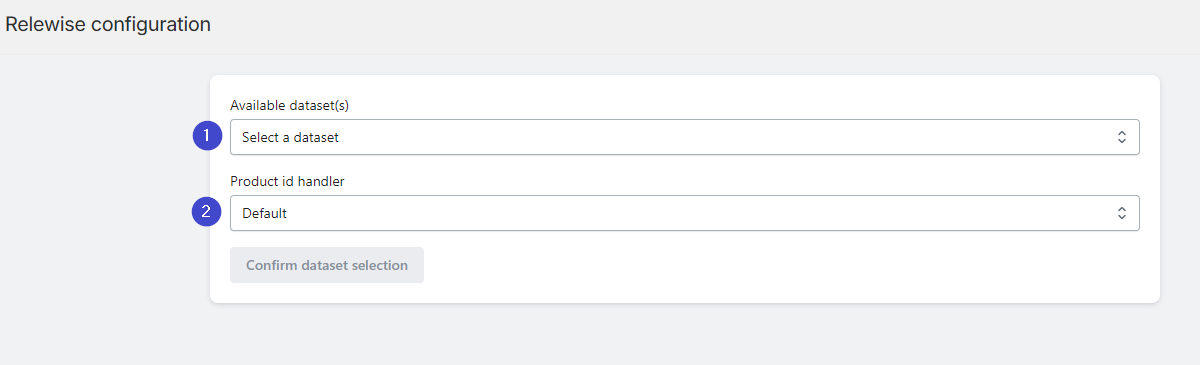
Product ID Handler
The App provides you with two distinct options for handling the Product ID that Relewise will use.
The Recommended Approach: Metafield
This is the recommended option for live production stores where you need robust and stable product tracking.
- Metafield: This allows you to specify a custom field on your Shopify products to act as the
productIdfor Relewise purposes.- Benefit: You can maintain the exact same Relewise
productIdfor a product even if it is temporarily removed from Shopify and then added back later. This ensures that all behavioral tracking and history saved by Relewise for that product remains intact, providing the most accurate recommendations.
- Benefit: You can maintain the exact same Relewise
To set up a custom metafield, navigate to your Shopify settings, click Custom Data and further on Products. From here, you may set up the custom metafield that your App will reference. When you have created the custom metafield, you will need to assign a unique ID to all the products in your store, if you don't already have such a metafield setup.
The Default Approach: Shopify's Native ID
This option is simple to set up and is typically sufficient for development or proof-of-concept (PoC) environments.
- Default: This uses the Shopify native
productId. Shopify IDs are unique across a Shopify Store and are safe to use with Relewise.- Important Caveat: Be aware that a Shopify ID can change if a product is removed from the shop and re-added later. If this happens, any behavioral tracking saved by Relewise for that product will be associated with the old, non-existent ID and will be effectively lost when the product is re-added with the new ID.
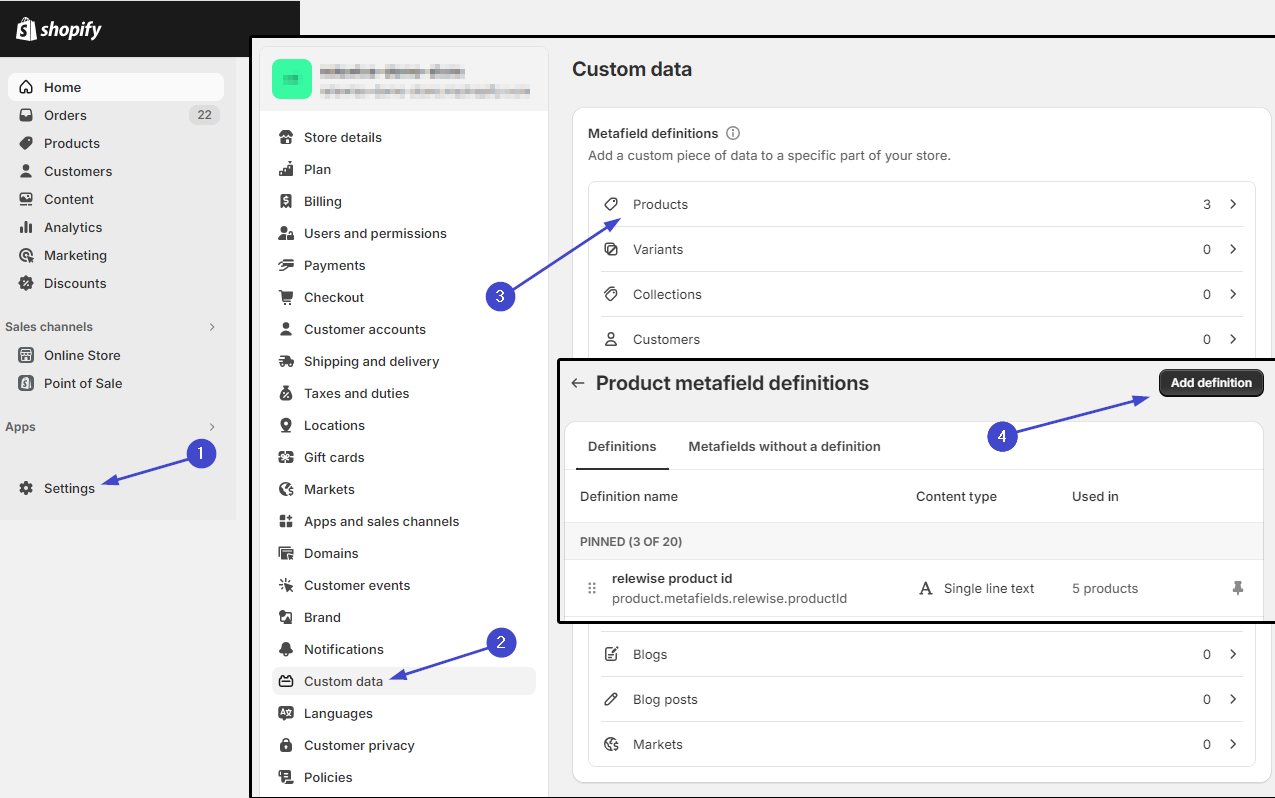
If you wish to use a metafield as Product ID handler, make sure you copy the namespace and name of the metafield exactly.
Product settings
The Product settings section lets you decide whether the Shopify App should import Shopify publication, market, and inventory-by-location data during the Product import.
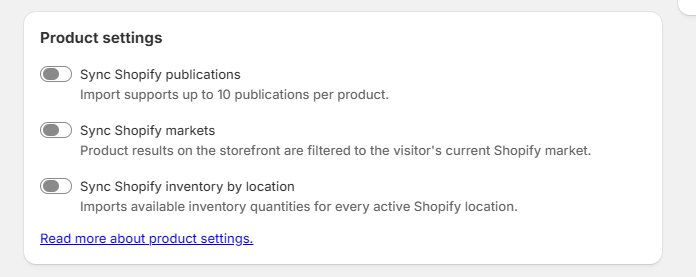
- Sync Shopify publications imports Shopify publication data to Relewise. The import supports up to 10 publications per Product.
- Sync Shopify markets imports Shopify market handles to Relewise. When this setting is enabled, product results on the storefront are filtered to the visitor's current Shopify market.
- Sync Shopify inventory by location imports the available inventory quantity for each active Shopify location. Relewise stores the values in the store-specific
<store-domain>_InventoryLevelData Key as an object keyed by location name. A Product's value is the sum of its Variants' available quantities at each location, while each Variant contains its own available quantity.
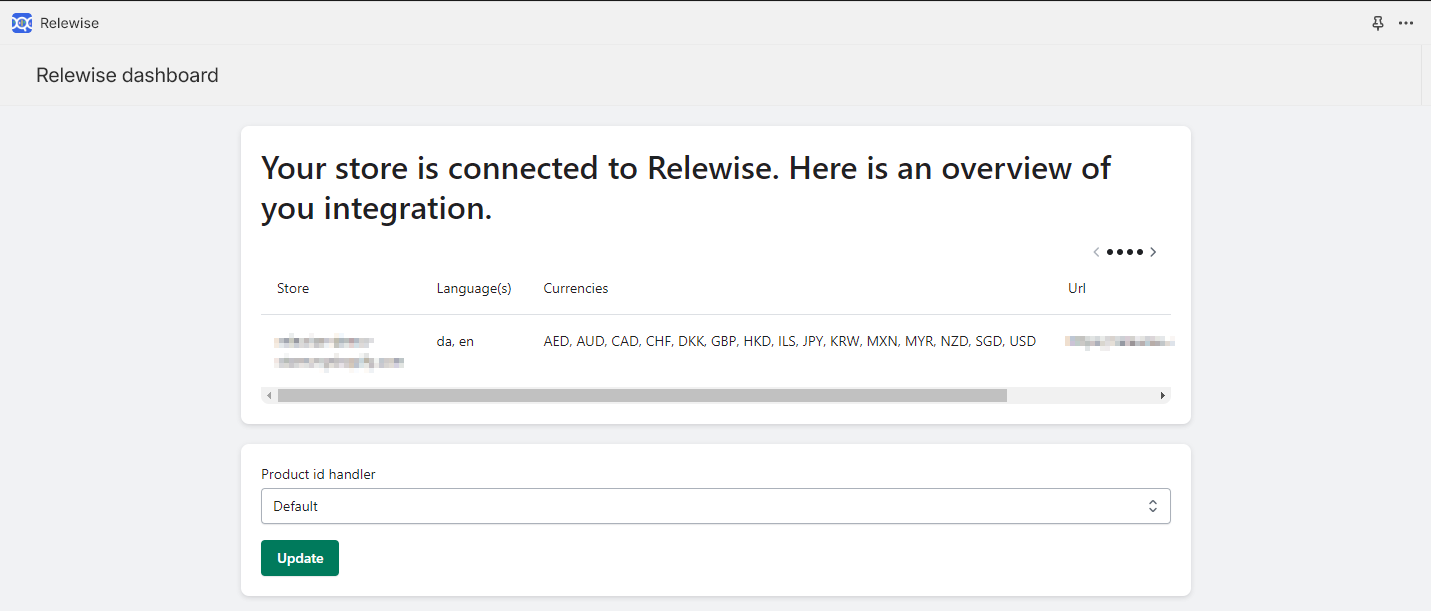
Upon confirming your choices, you will see an overview of your selections. At this point, the app has begun integrating your product data to Relewise, and you will be able to view them under the entities section of My Relewise within a few minutes.
Disable Shopify Price Updates
By default, the Shopify App updates Product and Variant prices in Relewise from Shopify. If you manage prices from another source and need to prevent Shopify from overwriting those prices, contact Relewise support to disable Shopify Price Updates for the Dataset.
Sync metafields
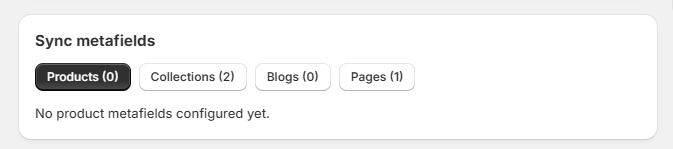
After confirming your choices and setting up the app, you can configure which Product, Collection, Blog, and Page metafields to sync with Relewise. In the Sync metafields section, choose the entity type you want to manage and specify the namespace and key of each metafield you want to sync.
The Shopify App supports metafields with the reference data type, including product references and metaobjects, when syncing Product, Collection, Blog, and Page metafields to Relewise.