Appearance
Shopify App: Native Product and Content Cards
Relewise supports rendering native Shopify product and content cards, allowing you to seamlessly integrate personalized search and recommendations while maintaining the visual consistency of your Shopify theme. This feature ensures that your product and card design aligns with your store's design, leveraging Relewise's powerful product discovery and personalization capabilities.
Product Cards
This guide explains how to integrate Shopify's native product card template with Relewise for seamless search and recommendation functionality.
Why Use Native Product Cards?
Using native Shopify product cards ensures your product display aligns with your Shopify theme while leveraging Relewise's powerful personalization and analytics capabilities.
Step 1: Create a New Template
To use native product cards, start by creating a new template in your Shopify theme:
- Go to Online Store -> Themes in your Shopify admin.
- Click Actions -> Edit Code.
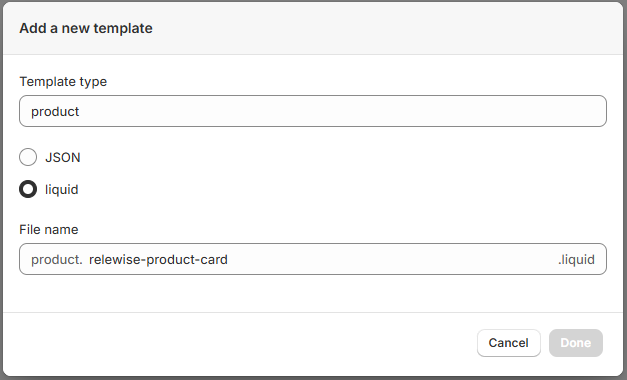
- Under the Templates section, click Add a new template.
- Choose Product as the template type, select Liquid, and provide a name for the template.
Note: The template name is important, as you will configure the app to use it later.
Step 2: Reference the Native Product Card
In the newly created template file, reference Shopify's native product card and include any necessary styling. Below is an example for the Dawn theme.
Make sure to include {%- layout none -%} to omit extraneous template data and keep it to the product card markup only.
liquid
{%- layout none -%}

<!-- include styling needed for your product cards here -->
{{ 'component-card.css' | asset_url | stylesheet_tag }}
{{ 'base.css' | asset_url | stylesheet_tag }}
{{ 'component-price.css' | asset_url | stylesheet_tag }}

<div style="width: 100%; height: 100%;">
  {% render 'card-product', card_product: product %}
</div>
Step 3: Configure the App to Use the Template
Next, configure the Relewise app to use the newly created template:
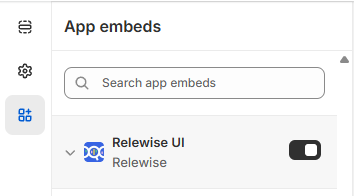
- Open your Shopify theme editor and navigate to App Embeds -> Relewise UI.
- Enter the name of the template you created in the Custom Product Card field.
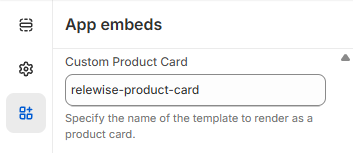
Once configured, the search results and recommended products will render using the native product card defined in your template.
Search Overlay Product Cards
You can also define a custom product card for rendering product results in the Search Overlay. You can reuse the template from the previous example or create a new one.
To reuse the same template:
- Ensure the Search Overlay is enabled in the Relewise app.
- Provide the name of the template in the Custom Search Overlay Product Card field.
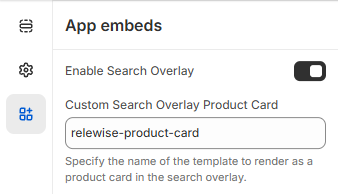
This will apply the custom product card to the Search Overlay results.
Content Cards
Integrate Shopify's native content card templates with Relewise so that blog articles and pages rendered by search or recommendation widgets match your theme styling.
What is the difference between blog articles and pages?
Relewise can surface Shopify articles (for example, blog posts) or pages (such as About or Contact). The Relewise UI app embed provides separate fields for article and page template names, so you can supply either or both depending on what you want to recommend.
Step 1: Create a New Article or Page Template
- Go to Online Store -> Themes in your Shopify admin.
- Click Actions -> Edit Code and right-click on the Templates folder.
- Click New File...
- Shopify requires the template file name to start with the resource type. For example, use
article.relewise-article-card.liquidfor blogs orpage.relewise-page-card.liquidfor pages.

Step 2: Reference the Native Content Card
In the newly created template file, render Shopify's native content card snippet and include the styling resources needed for your theme. Add {%- layout none -%} to keep the output limited to the card markup.
Example: Dawn Article Card Template
liquid
{%- layout none -%}

<!-- include styling needed for your content cards here -->
{{ 'component-card.css' | asset_url | stylesheet_tag }}
{{ 'base.css' | asset_url | stylesheet_tag }}
{{ 'component-article-card.css' | asset_url | stylesheet_tag }}

<div style="width: 100%; height: 100%;">
  {% render 'article-card', blog: blog, article: article, show_image: true, show_date: true, show_excerpt: true %}
</div>
Step 3: Use the Template in Relewise
Open the App Embeds -> Relewise UI section in the Shopify theme editor. Enter the template name in the Article content card template or Page content card template fields—or in both if you intend to recommend each content type.
By following these steps, you can seamlessly integrate Shopify's native product and content cards with Relewise, ensuring a consistent and personalized user experience across your store.
Additional Settings
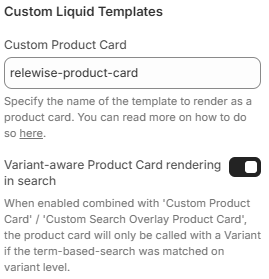
When using Native Product Cards it is also possible to configure the Cards to be variant-aware based on the term used in search. This means we will render the Product Card without a variant if the term matched on a product property instead of a variant-level property. Read more about Variant Resolution to understand how this works behind the scenes.
You can enable it here in the theme editor: