
Appearance
Shopify App: Search Configuration
Use Search Configuration to control which facets and sorting options shoppers see on your search results and collection pages, and when storefront search requests are sent.
If you have not connected a dataset yet, you will see Dataset required first. Connect your dataset, then return to this page.
What you can do here
- Create one or more reusable search configurations.
- Assign a default configuration to the:
- Search page
- Collection pages
- Override the default collection-page configuration for specific collections.
- Add, reorder, rename, enable, disable, edit, or remove facets in each configuration.
- Choose whether each configuration should use the default sorting options, a custom sorting menu, or no sorting options.
- Add, reorder, rename, enable, disable, edit, or remove custom sorting options in each configuration.
- Localize facet headings and sorting labels per storefront language.
- Configure when the Search Overlay and Product Search components send requests.
- Synchronize your current search configuration setup to the other stores in the same dataset.
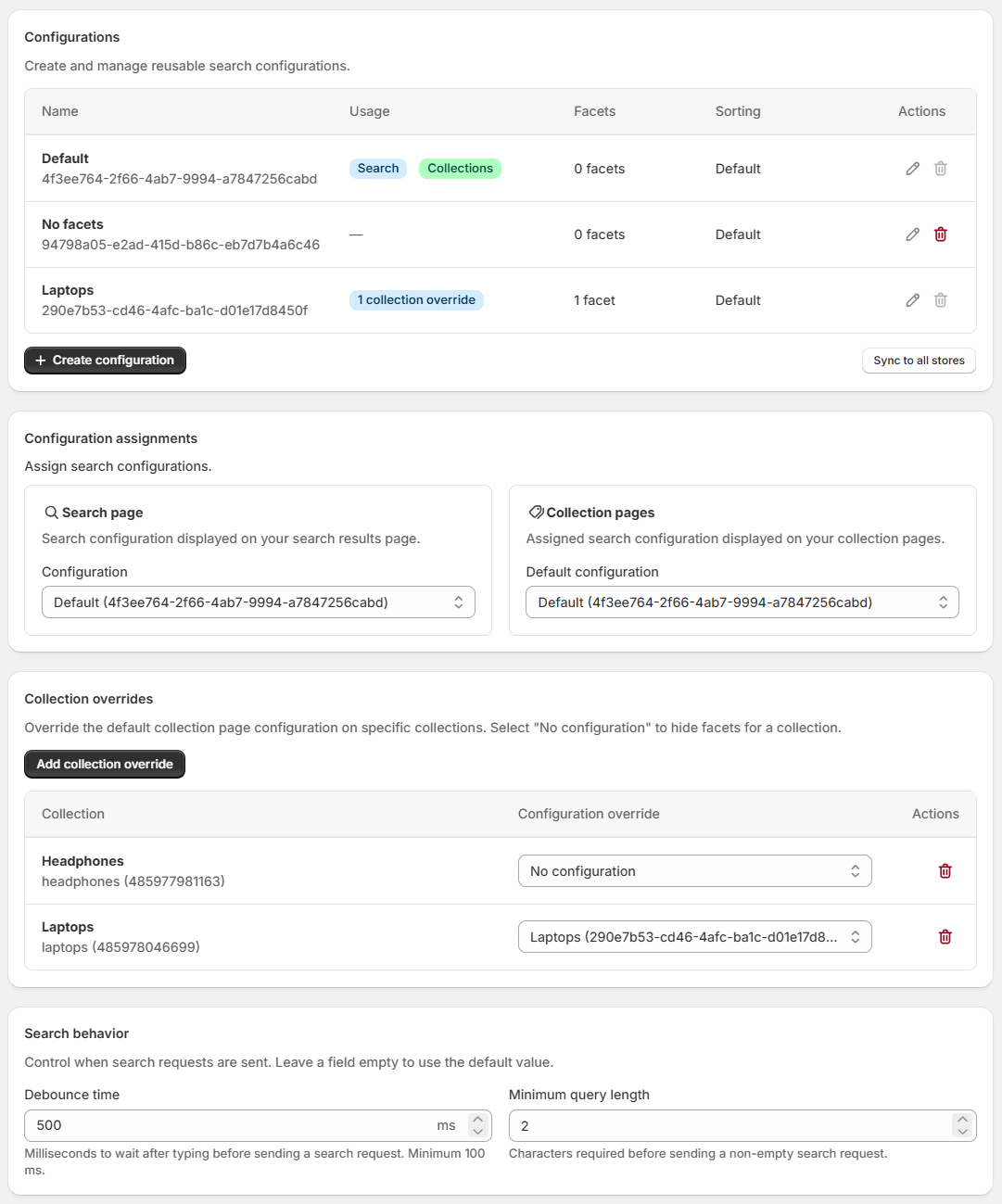
The list page gives you a quick overview of each configuration:
- The Usage column shows where a configuration is currently used:
- Search means it is assigned as the default search-page configuration.
- Collections means it is assigned as the default collection-page configuration.
- A collection-override badge shows how many collection-specific overrides use that configuration.
- The Facets column shows how many facets are configured.
- The Sorting column shows whether the configuration uses:
- Default
- Hidden
- Custom options
Create and manage configurations
- Open Search configurations.
- Click Create configuration.
- Open the configuration from the list.
- Give it a clear Name so your team can recognize it later.
- Add and configure the facets and sorting behavior you want to show in the storefront.
New configurations start with no facets and the default storefront sorting behavior, so you can build each one intentionally for a specific storefront experience.
You can delete configurations from the list page, but only when they are not in use. A configuration cannot be deleted while it is assigned to a default page or used in a collection override.
Set defaults for your storefront pages
In the Configuration assignments section:
- Set the default configuration for your Search page.
- Set the default configuration for your Collection pages.
Choose None if you do not want to apply a default configuration.
Override specific collection pages
In the Collection overrides section, you can assign a specific configuration to individual collections, such as outlet or sale collections.
- Click Add collection override.
- Pick a collection with Shopify's collection picker.
- Choose the configuration that should apply to that collection.
- Save the override.
Choose No configuration if you want to hide facets for a specific collection.
Configure search behavior
The Search behavior section controls when the Shopify App's Search Overlay and Product Search components send requests. These settings apply across the store rather than to an individual Search Configuration.
- Debounce time: The number of milliseconds to wait after the shopper stops typing. Enter a whole number of at least
100. Leave the field empty to use the default of300milliseconds. - Minimum query length: The number of characters required before sending a non-empty search request. Enter a whole number of at least
1. Leave the field empty to use the default of1.
For more information about request timing, see Configure Search Request Timing.
Synchronize configurations to other stores in the dataset
If your dataset contains more than one store, the list page includes a Sync to all stores action.
Use this when you want to synchronize the current search configuration setup to the other stores in the same dataset.
This action synchronizes:
- Configurations, including their facets and sorting settings
- Search-page assignment
- Collection-page assignment
- Search behavior settings
Use it carefully:
- It replaces the existing search configuration setup in the other stores.
- It does not synchronize collection overrides.
- It does not ask you to review each target store individually before applying.
Configure facets inside a configuration
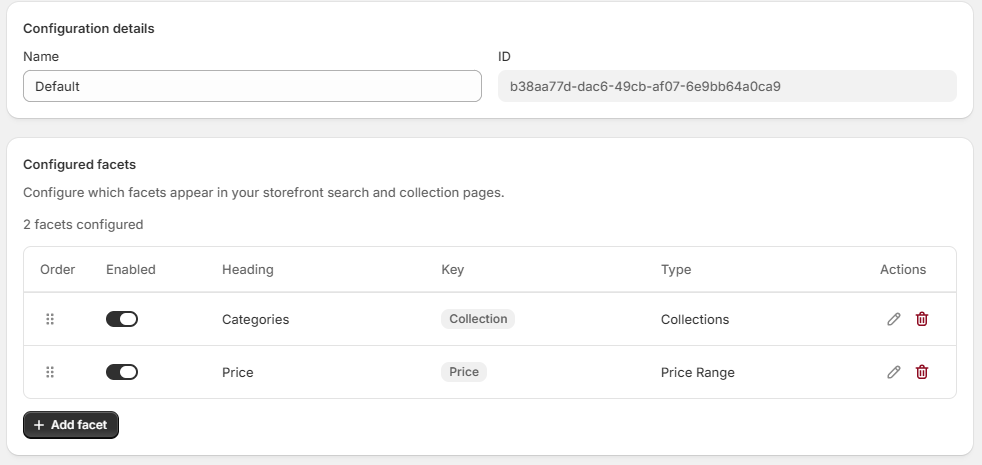
In Configuration detail, the Configured facets table shows:
- Order
- Enabled
- Heading
- Key
- Type
- Actions
You can:
- Drag facets to change their order.
- Toggle facets on or off.
- Edit an existing facet.
- Delete a facet.
Add or edit a facet
When you click Add facet or Edit, configure the following fields:
- Property key: Choose the indexed product or variant field the facet should use.
- Facet type: Select the facet type that matches the chosen property key.
- Scope (Selection strategy): Decide whether the facet should use product values, variant values, or fallback behavior when supported.
- Category scope: For collection facets, choose whether the facet should use only the direct category or include ancestor categories.
- Default heading: Set the label shoppers should see in the storefront.
- Manage headings: Add translated headings for the available storefront languages.
The app automatically narrows the available facet types based on the selected property key, so only compatible facet types are offered.
The Scope (Selection strategy) field only appears for supported facet types. If there is only one valid scope for the selected property key, the app selects it automatically.
Configure sorting inside a configuration
In Configuration detail, the Configured sorting section controls which sorting options shoppers can use on the storefront.
Start by choosing Sorting behavior:
- Use default sorting options keeps the standard storefront sorting menu.
- Use custom sorting options replaces the default sorting menu with the sorting options you configure in this section.
- Hide sorting options removes sorting options for this configuration. This hides the sorting button on the page.
Default sorting behavior
When a configuration uses Use default sorting options, the storefront keeps these built-in sorting options:
- Relevance
- Price: low to high
- Price: high to low
- Name: A to Z
- Name: Z to A
Use this when you want a configuration to control facets only and leave sorting unchanged.
Custom sorting behavior
When a configuration uses Use custom sorting options, the Configured sorting table shows:
- Order
- Enabled
- Heading
- Key
- Sort order
- Actions
You can:
- Drag sorting options to change their order in the storefront menu.
- Toggle sorting options on or off.
- Edit an existing sorting option.
- Delete a sorting option.
- Localize sorting labels per storefront language.
Add or edit a sorting option
When you click Add sorting option or Edit, start in the Property key field and search for the sorting option you want to use.
You can pick from:
- Built-in sorting options:
- Relevance
- Price: low to high
- Price: high to low
- Name: A to Z
- Name: Z to A
- Brand: A to Z
- Brand: Z to A
- Popularity: low to high
- Popularity: high to low
- Synced product or variant data keys for custom product-data sorting
After you choose a sorting option:
- Set the Default heading shoppers should see in the storefront.
- Use Manage headings to add localized labels for the available storefront languages.
- For custom product-data sorting, choose whether the order should be Ascending or Descending.
For custom product-data sorting, the app uses the selected key to determine whether sorting should happen on product data or variant data. Only synced product and variant data keys are available for custom sorting.
Saving your changes
- On the list page, creating or deleting configurations is saved immediately.
- In Configuration assignments and Collection overrides, changes are saved immediately.
- In Configuration detail, use the save bar to Save or Discard changes to facets, sorting, and the configuration name.
Supported facet types
The current Shopify storefront integration supports these facet types:
- Text options (String)
- Yes/No options (Boolean)
- Number options (Double)
- Number range (Double range)
- Price range (Sales price range)
- Collections (Category facet)
Use configurations in custom storefront setups
If you build a custom search or collection page instead of using the Relewise app UI blocks, you can still use the configurations managed in the Shopify app.
When the Relewise UI app embed is active, the active configurations are exposed on window.ShopifyRelewise:
js
const searchConfiguration = window.ShopifyRelewise.searchConfigurations.search;
const collectionConfiguration = window.ShopifyRelewise.searchConfigurations.collection;searchis the configuration assigned to the search page.collectionis the active configuration for the current collection page. Collection-specific overrides are resolved first, then the default collection-page assignment is used.
Each exposed configuration has:
config: The raw search configuration object, ornullif no configuration is active.apply(builder): Applies the configured facets and sorting to a Relewise product search builder.
Example:
js
const configuration = window.ShopifyRelewise.searchConfigurations.search;

if (configuration.config) {
  configuration.apply(productSearchBuilder);
}
On a collection page:
js
const configuration = window.ShopifyRelewise.searchConfigurations.collection;

if (configuration.config) {
  configuration.apply(productSearchBuilder);
}
The following example shows a custom search page flow where the app-provided configuration is applied to a product search builder before the request is sent. The example uses the Relewise JavaScript SDK that is loaded by the Relewise UI app embed.
js
const searchTerm = new URLSearchParams(window.location.search).get("q") ?? "";
const configuration = window.ShopifyRelewise.searchConfigurations.search;
const user = await window.ShopifyRelewise.getUserAsync();

const settings = {
  language: Shopify.locale,
  currency: Shopify.currency.active,
  displayedAtLocation: "Custom Search Page",
  user,
};

const searcher = new Relewise.Searcher("DATASET_ID", "API_KEY", {
  serverUrl: "SERVER_URL",
});

const productSearchBuilder = new Relewise.ProductSearchBuilder(settings)
  .setSelectedProductProperties({
    displayName: true,
    pricing: true,
    dataKeys: [`${Shopify.shop}_*`],
  })
  .setSelectedVariantProperties({
    dataKeys: [`${Shopify.shop}_ShopifyVariantId`],
  })
  .setTerm(searchTerm)
  .filters((filters) =>
    filters
      .addProductDataFilter("ShopifyDomains", (condition) =>
        condition.addContainsCondition(Shopify.shop),
      )
      .addVariantDataFilter("ShopifyDomains", (condition) =>
        condition.addContainsCondition(Shopify.shop),
      ),
  )
  .pagination((pagination) =>
    pagination
      .setPageSize(24)
      .setPage(1),
  );

if (configuration.config) {
  configuration.apply(productSearchBuilder);
}

const result = await searcher.searchProducts(productSearchBuilder.build());
Replace "DATASET_ID", "API_KEY", and "SERVER_URL" with the values from your Relewise setup.
On a custom collection page, use the collection configuration and add the collection filter before searching:
js
const collectionId = ShopifyAnalytics.meta.page.resourceId;
const configuration = window.ShopifyRelewise.searchConfigurations.collection;
const user = await window.ShopifyRelewise.getUserAsync();

const settings = {
  language: Shopify.locale,
  currency: Shopify.currency.active,
  displayedAtLocation: "Custom Collection Page",
  user,
};

const searcher = new Relewise.Searcher("DATASET_ID", "API_KEY", {
  serverUrl: "SERVER_URL",
});

const productSearchBuilder = new Relewise.ProductSearchBuilder(settings)
  .setSelectedProductProperties({
    displayName: true,
    pricing: true,
    dataKeys: [`${Shopify.shop}_*`],
  })
  .setSelectedVariantProperties({
    dataKeys: [`${Shopify.shop}_ShopifyVariantId`],
  })
  .filters((filters) =>
    filters
      .addProductDataFilter("ShopifyDomains", (condition) =>
        condition.addContainsCondition(Shopify.shop),
      )
      .addVariantDataFilter("ShopifyDomains", (condition) =>
        condition.addContainsCondition(Shopify.shop),
      )
      .addProductCategoryIdFilter("ImmediateParent", [collectionId])
      .addVariantDataFilter(`${Shopify.shop}_ShopifyCollectionIds`, (condition) =>
        condition.addContainsCondition(String(collectionId)),
      ),
  )
  .pagination((pagination) =>
    pagination
      .setPageSize(24)
      .setPage(1),
  );

if (configuration.config) {
  configuration.apply(productSearchBuilder);
}

const result = await searcher.searchProducts(productSearchBuilder.build());
The Product Category filter keeps product-level collection associations working. The Variant data filter is also needed for Shopify collections that target specific variants, because those collection memberships are stored on the matching Variants.
Use config if your custom interface needs to inspect the configured facets or sorting options. Use apply(builder) when you want Relewise to apply the app-managed facet and sorting setup to the request builder for you.