
Appearance
How-To: Boosting Variants with Merchandising
Boosting a specific variant of a product using Merchandising is a straightforward process, but the process depends slightly on the context of the use case. This article aims to explain how to perform the process of boosting a specific variant of a product and how it differs between searches and recommendations.
Note that for the purpose of this guide, we will focus on boosting specific variant IDs. The principles of this guide extend to any kind of targeting variants - IDs, data keys, engagement by user - but for simplicity's sake we will focus purely on targeting specific IDs.
To create this rule, navigate to the Merchandising -> Rules area of My Relewise. From here, click Create new rule and select Rule Type: Boost/Bury Rule.
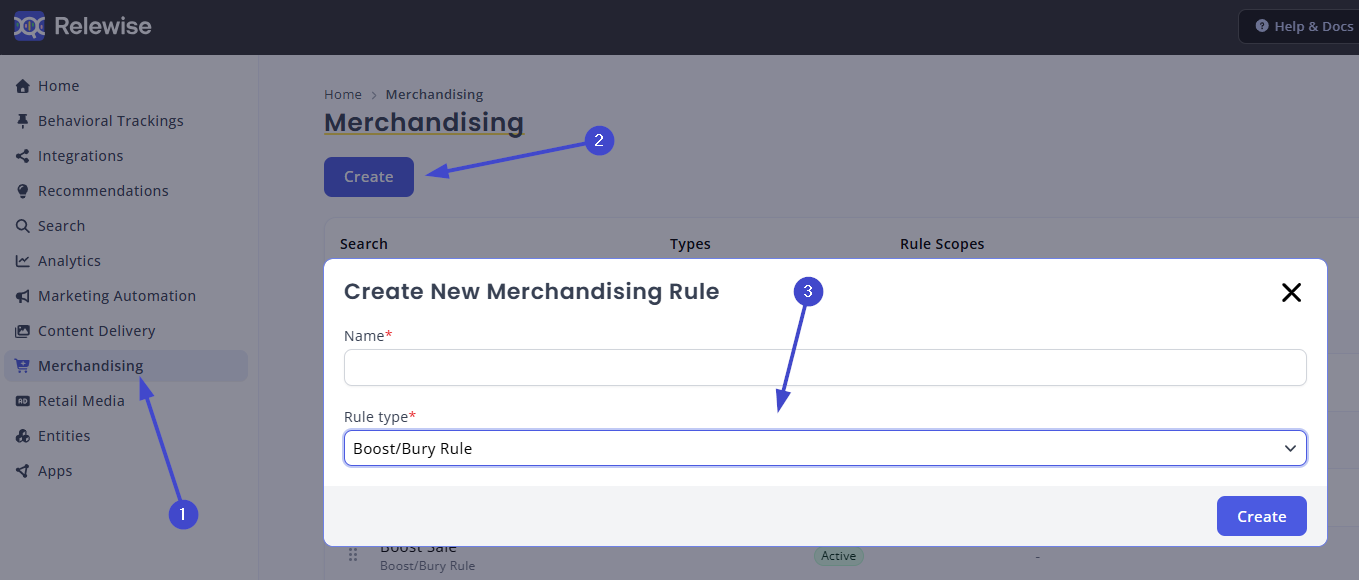
Boosting Variants in Searches
Boosting variants in searches, whether a term-based or termless search, functions the same. Unlike recommendations, boosting a variant in a search will also boost the corresponding product, which means that you only need to create a rule to boost the variant itself.
Term-based and Termless Searches
By default, you will notice that the main difference between term-based and termless searches is that variants will tend to show up one after the other for a termless search, while they will intermingle more readily for a term-based search. This is because introducing a search term may have an effect on the relevance of a variant, which in turn will affect its individual sort order.
When boosting a single variant in a termless search, however, it is perfectly possible for the variant to rise individually to a higher sorting position than the other variants of the same product, thereby "separating" it from the rest. This is to be expected, but may come as a surprise if you are used to variants always showing up grouped together in the Relewise-powered product category page.
In the Merchandising rule UI, under Rule Scope, you will want to select Product Search under the Search tab. Since variants are exclusive to the domain of product searches, there is no reason to affect other search types. You may add further Rule Scopes such as Locations or Languages at your leisure, but it is not necessary as a baseline.
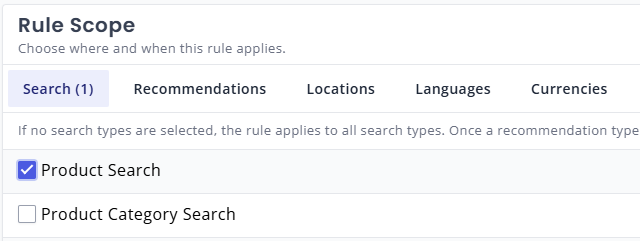
Choose the rule scope Search -> Product Search.
Target Entities
Next, click the Target Entities button and use the "Add a Filter" dropdown to find "Matches Variant IDs":
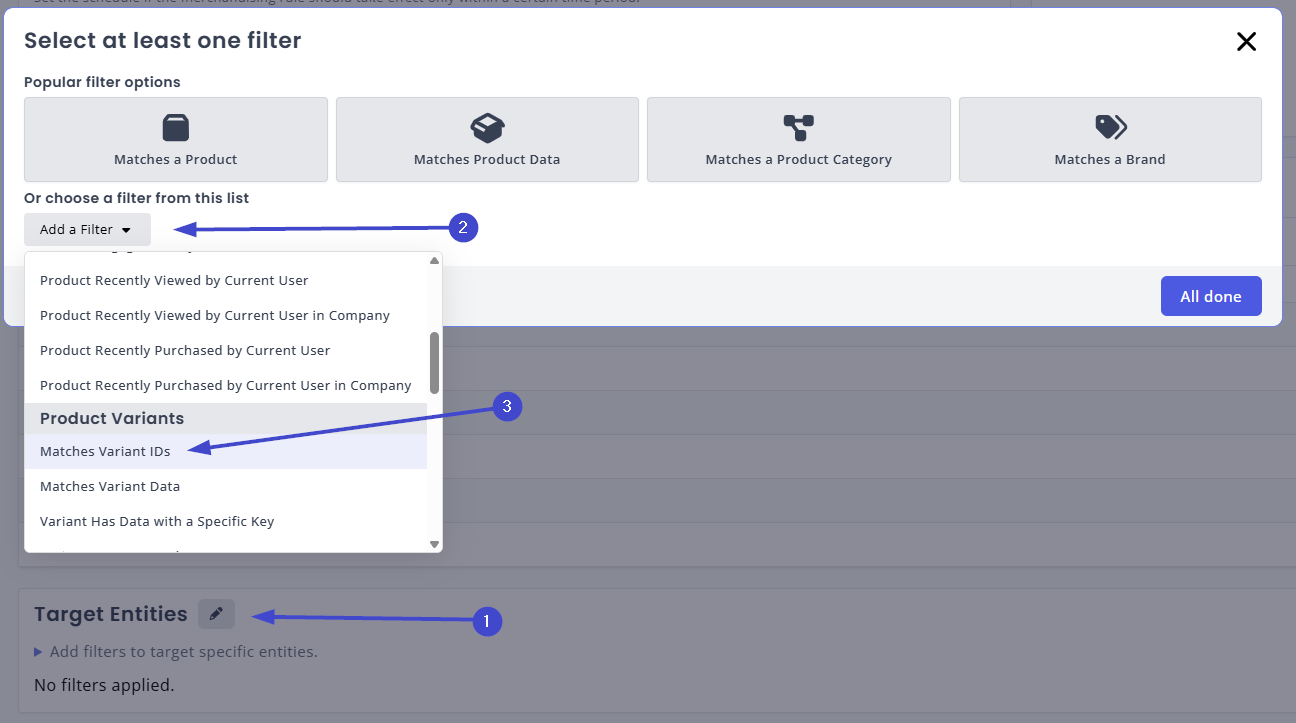
Select the Matches Variant IDs from the dropdown menu.
Now select the product that contains the variant you want to boost and then its variant. The UI will help you find the product through entering either the display name or its ID, while its variants will be displayed in a subsequent dropdown menu.
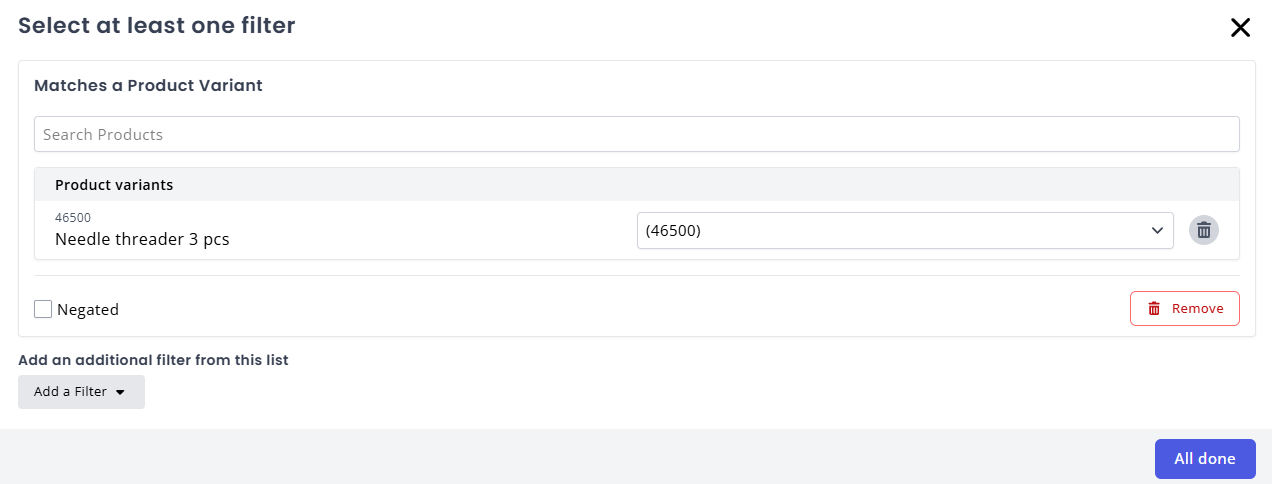
Find the product via display name or ID and then select the variant to affect.
Boosting Variants in Recommendations
Unlike in a search, you cannot boost a variant directly in a recommendation request. This is due to the way Relewise populates recommendation results.
For this reason, you will need to add an extra step, to target both the product containing the variant, as well as the variant itself.
In the Merchandising rule UI, under Rule Scope, you will want to select the recommendation type(s) to affect. To identify what recommendation types you are using, you can go to the Recommendations Overview page.
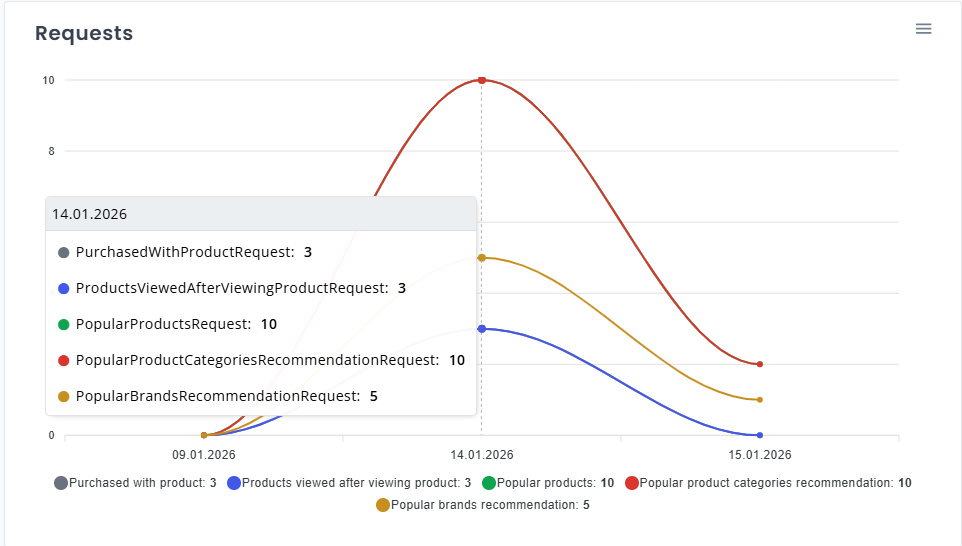
Use the recommendations overview page to identify what recommendation types you are using
You only need to select the recommendation types you actively want to affect. If the rule has to specify a particular display location as well, such as the Product Display Page, you can do so under the Locations tab.
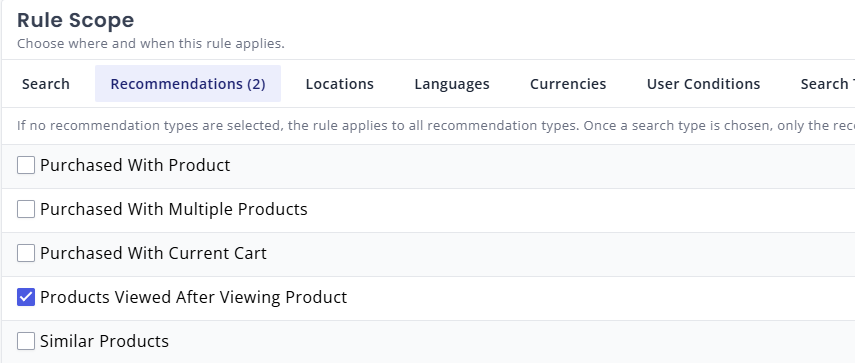
Select the recommendations you want to affect.
Target Entities
Next, click the Target Entities button and use the "Add a Filter" dropdown to find "And". You will want to use an "And" filter to ensure that the rule evaluates the product and the variant at the same time.
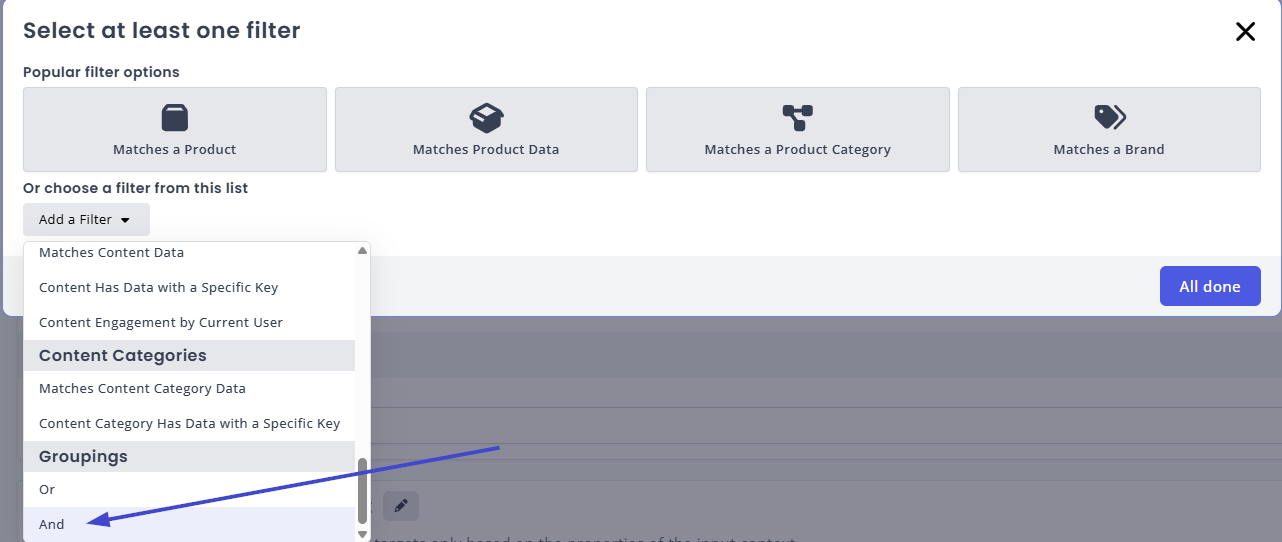
Select the And filter...
The And filter is going to contain two things: A ProductIdFilter, and a VariantIdFilter. Add them accordingly, specifying the Product ID in the ProductIdFilter, and the Product ID and Variant ID in the VariantIdFilter:
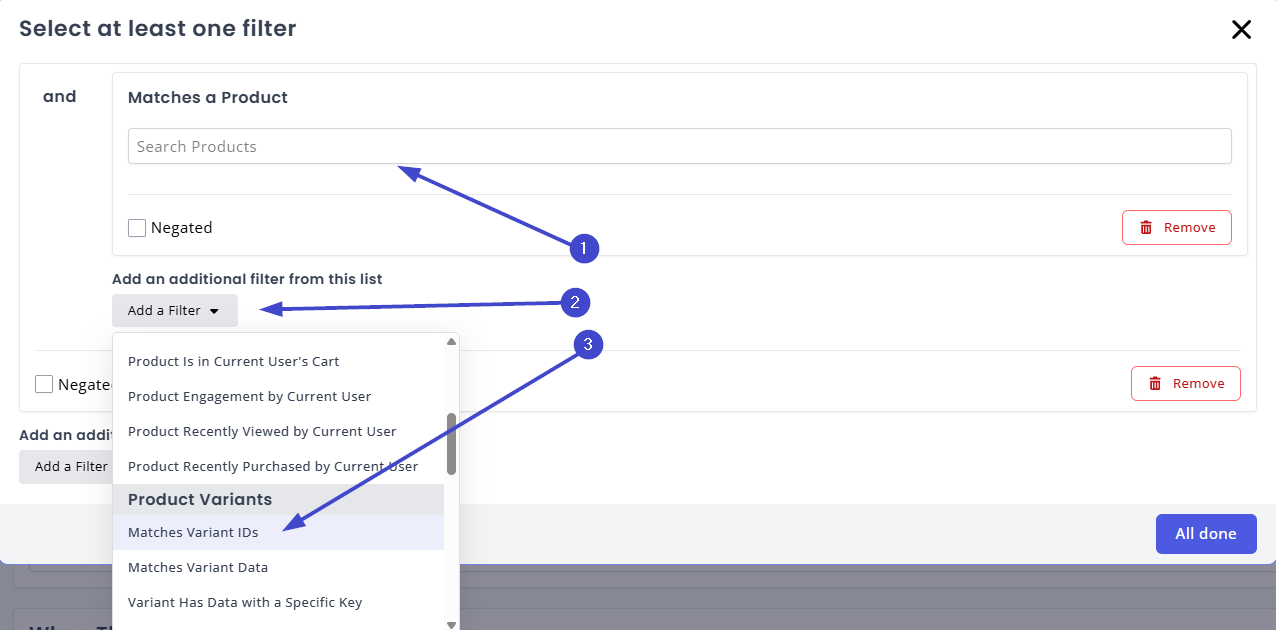
...and then add a ProductId Filter and a VariantId Filter.
Your Target Entities should look similar to this, specifically containing both the Product is and Product Variant is within the And bracket:
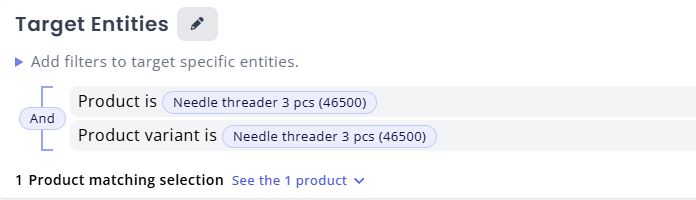
Your filter should display both productId and variantId filters within the And bracket.
This setup ensures that you are boosting the product first, and subsequently the variant that you want displayed. Without the Product ID boost, you will not be guaranteed to have the product containing the variant being shown.
Defining the Boost
Once you have defined what entities to target, you can choose how much to boost the products by. There is no single correct value; you should experiment to find a balance between promoting these products and preserving visibility of others. Adjust and experiment with the values until you find what works for you.
To boost, you can either select one of the premade values in the dropdown menu or select the Custom value and enter your own percentage into the field. Positive values entered here will boost the products, while negative values will bury them.