
Appearance
How-To: Troubleshoot in My Relewise
This article will teach you the basic steps of troubleshooting in Relewise. It covers the following topics:
- Identifying your own User ID (provided user tracking is set up correctly)
- Accessing the raw JSON of the request you want to troubleshoot
- Troubleshooting common Search-related issues
Retrieve your User ID
The first step in any troubleshooting endeavor is to ensure that the data you are looking at is yours, and not the behavior of some other user. This example takes off from a Search request, since these are the most easily identified and distinct types of request in Relewise.
Contingencies
This step assumes that Behavioral Tracking is set up correctly, such that when you accept cookies on your website and enter a search term in your search bar, you will be given a temporary ID in return.
User ID Retrieval Steps
- In one browser window, open the My Relewise Search Overview page
- In a second browser window, open your website
- Now we want to find your user ID. Enter a search into your website's search bar, and immediately refresh the My Relewise Search Overview page. You should be able to find your search without too many issues - for ease of use, try entering something distinct, like a string of nonsense characters, e.g., "qweqweqwe"
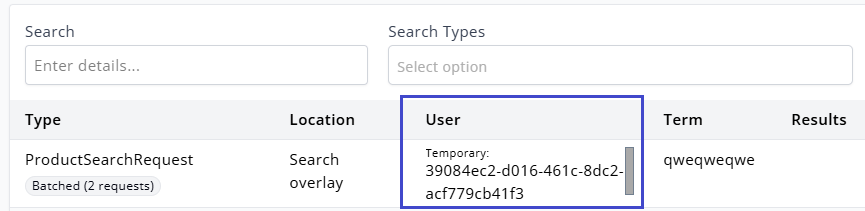
Searching for a distinct string makes it easier to identify your own user among the rest.
You are looking for the information contained in the User field - copy this and keep it handy (Hint: You can click on the User ID to open up a User Entity modal, and copy the ID directly from there):
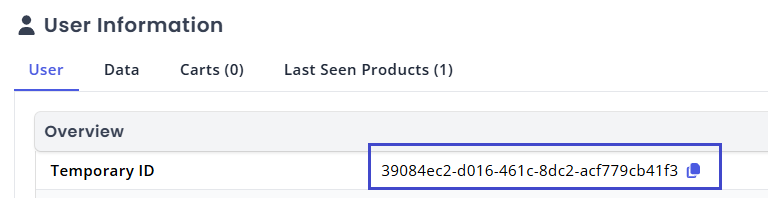
Grab the user ID directly from the User entity modal
No User ID
If your solution does not allow you to grab a user ID for whatever reason, you can still follow the rest of the steps in this guide - you just have to manually figure out which of the requests in the Overview page is the one you have prompted.
There is no shortcut to this without the user ID available - look at the product results on the overview page, and compare them with the products being shown on your product category page. If they are the same, you have found your request.
This also applies for solutions that do not use Search, but do use Recommendations.
Retrieve your API Request
Now you need to isolate the API request being generated when you perform your search or recommendation request.
- On your website, navigate to the search page, or the page displaying the recommendation.
- In My Relewise, on the relevant Overview page, apply the User ID you retrieved above to the "Search" field, to filter on your own requests.

Filter by your User ID
- Refresh the page on your website, and immediately refresh the Overview page. This should allow you to capture the request. Depending on the amount of traffic your site receives, you may need to do this a few times to grab your request.
- With your request in hand, click the "Details" icon on the far right to open the raw JSON of the request
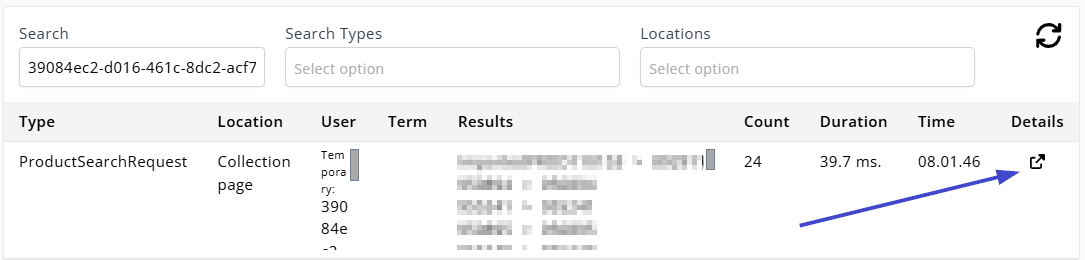
Click the 'details' button to view the raw JSON of the request
Troubleshooting Search
The most common issues with Search tend to be either that a product is not showing up in a relevant search, or that a product is showing up, but in an unintended or unfavorable order.
Entity Missing in Search
To figure out why an entity is not showing up in a particular search where it ought to be shown, follow the step-by-step guide below. Each step builds on the previous steps, so make sure you do not skip any of them.
Check that the entity exists in My Relewise, and that it is not disabled.
- Refer to the Entities page in My Relewise. Search for the entity, open its details view, and use the status control to enable it. If an integration, feed, PIM, or CMS manages the entity, also correct the status in the source system so a later synchronization does not disable it again.
Check that the search term is available on the entity.
- Find the entity in My Relewise and click on it. Under the 'Data' tab, search for the term to find if it matches on any of the available data.

To check if the product contains the search term `Pepsi`, we filter on the term to find the fields that contain it.
Check that the fields containing the search term words are correctly indexed. You can find your index with a list of indexed fields here: 🔗https://my.relewise.com/search/indexes
Check if there are any filters in your search request that are filtering out the desired product. Use the method outlined above to grab the JSON of your request, and look for the part that starts with
"Filters": {
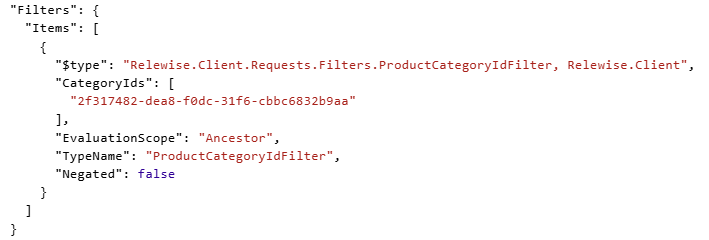
An example of what a Filter might look like in the request.
- Check if there are any Merchandising rules that cause the product to be filtered out or buried below the rest.
- If you can identify which of your merchandising rules are likely to be affecting your request, you can disable it by going to the rule itself and unchecking the "Enabled" box at the top of the screen. Use this to test if this is indeed the culprit.
If none of these steps have produced a viable explanation for the missing product, reach out to our support for help.
Entity has the wrong sorting
Inherent to Relewise's function is our Personalization, which is intended to assist in offering the most relevant entities to your users. By default, Relewise urges you to consider whether the order of your products can be left to the engine, since the default positioning is based on the proven interactions of your users.
However, if you do spot something that is genuinely incorrect in the sorting, consult the following troubleshooting steps:
- Verify that the search request is using either relevance sorting or popularity sorting. Grab the request using the method outlined above, and look for the part that starts with
"Sorting": {. If no such line exists, your request is using the default Relevance sorting.- If your request is using anything other than relevance or popularity sorting, look into the nature of the sorting algorithm, and consult with the relevant data on your entity.
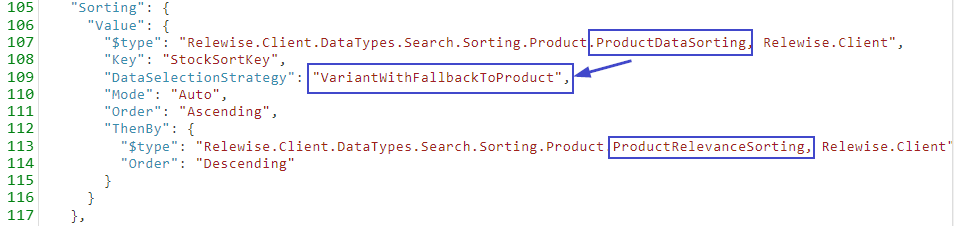
If your search uses anything but a PopularitySorting or RelevanceSorting, the sort order is not up to the Relewise engine, and depends instead on the criteria you have specified in the sort logic.
Repeat your search in an Incognito browser window, to eliminate the possibility that your sorting is being affected by personal relevance.
Compare the sort order of the results of your search query with the sort order of the results on your website. You can find the request in the search overview - you may need to re-submit the search request to make it show up. The sort order should always correspond 1:1 with what is shown in My Relewise. If it doesn't, the odds are that your implementation is imposing a sorting logic on the results after Relewise has returned them, which defeats the purpose of using Relewise's personalization algorithm.

The My Relewise search overview displays results in the order they are meant to be shown. Always ensure that your website shows results in this order as well.
- Check if there are any Merchandising rules that cause the entity to be boosted or buried.
- If you can identify which of your merchandising rules are likely to be affecting your request, you can disable it by going to the rule itself and unchecking the "Enabled" box at the top of the screen. Use this to test if this is indeed the culprit.
Check the Search Index against the Data Key with which the Product was found. While it is generally inadvisable to change the search index on the basis of a single unintended search result, it may be a clue as to why your Product is found out of place.
Check whether Semantic Matching is enabled on broad fields such as descriptions. Semantic Matching can intentionally return results that do not contain the exact search term, but if it is enabled on too many fields it can also introduce unwanted result noise.
If none of these steps have produced a viable explanation for the missing product, reach out to our support for help.
Troubleshooting Recommendations
Recommendation is showing incorrect entities
There are many reasons why a recommendation might return other products than what you might expect. Make sure that you understand the purpose of each recommendation type, and how it correlates with your expectations of the results.
For instance, if you are using a ViewedAfterViewing logic, you should not expect the entities to necessarily match the input product in terms of brand or product type, since the logic of the algorithm is explicitly based on user behavior, and not on the product data itself.
We recommend consulting the recommendation usage article to learn more about how you can get the most out of your Relewise recommendations.
If the results are wrong, however, you may use the following techniques to troubleshoot:
If there are specific entities missing in your recommendation, check if the entity is Disabled. Disabled entities will never show up in recommendations or search results.
- Go to Entities and search for the entity in question. It will have either a green Enabled or a grey Disabled icon next to it.
Check if there are any filters in your recommendation request that are filtering out the desired product. Use the method outlined above to grab the JSON of your request from the recommendations overview page, and look for the part that starts with
"Filters": {Check if the
AllowFillIfNecessaryToReachNumberOfRecommendationsflag is active on the request. If so, the request is filling up the recommendation slider with products because there is insufficient tracking data to support high-confidence recommendations. Consider implementing a Filter Scope to narrow the scope of products being recommended.
Recommendation Type-specific Issues
- If you are troubleshooting a
PurchasedWithProductrecommendation, ensure that the request contains the correct Product ID (and optionally Variant ID). Grab the request as outlined above, and check the values forProductAndVariantId.

Ensure that your `PurchasedWithProduct` request includes the Product ID, and optionally Variant ID.
- If you are troubleshooting a
PopularProductsrecommendation, ensure that you have setsinceMinutesAgoto an appropriate value. Read more on our Best Practices page.