
Appearance
How-to: Query Disabled Products
Occasionally, you may need to retrieve an overview of disabled products on your dataset. Since the Relewise search automatically filters out disabled products, this can only be achieved using the Data Accessor.
Aside from using it to retrieve disabled products, the Data Accessor can also be used for other types of troubleshooting, as well as rudimentary functions where personalization is not a concern. This article will introduce you to the Data Accessor, and explain how to accomplish the task of querying your disabled products.
Note that the Data Accessor is only available in the C# SDK. If you want to query it outside of this SDK, you must call the JSON API directly.
What is the Data Accessor
The Data Accessor is a lightweight API for reading entity data (products/variants/content) directly from your Relewise dataset without running the full search/ranking/faceting pipeline. It’s designed for simple, cheap reads when you only need entity fields and not relevance, personalization or facet counts.
Because the Data Accessor does not perform faceting or relevance calculations, it is a faster endpoint to query than the search. This makes it useful for things such as fetching product or variant data for use on a PDP, or when you need to simply retrieve data stored in Relewise - this could be for purposes of backup, transferring data between datasets, checking specific data points, troubleshooting, etc.
The Data Accessor is also a cheaper endpoint to query than the search, due its simpler performance. This means that there may be opportunities for optimizing the price of using Relewise - although we urge you to consider that, because the Data Accessor does not benefit from any type of behavioral tracking, it is best used sparingly as a tool, and less as a substitute for the search.
Another caveat is that data queried by the Data Accessor cannot be influenced by things like Merchandising. As such, while cheaper, it is generally ill-advised to build a PLP using the Data Accessor, even if it would be faster or cheaper.
What does the Data Accessor Return
The Data Accessor returns entity fields (product/variant/content data) as stored in the dataset. The queried data can be specified to just specific datakeys, but can also be extended to all data available on the entity by setting the property selectedProductProperties to allData.
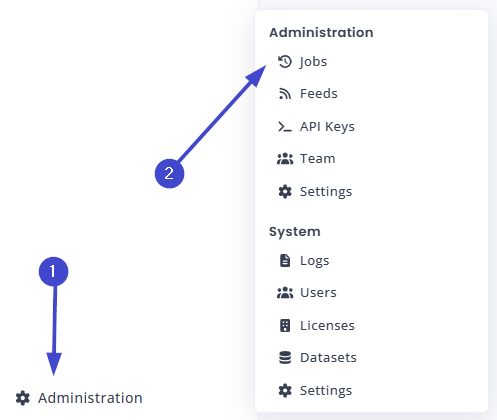
By using the allData property, you receive the raw, unnormalized data object that was imported for that entity — including nested objects and lists — exactly as supplied by your feed or API. If a key is present with only a type and no value, then the value wasn’t supplied by the integrator. If you are unsure if your data is being imported via push or pull, you can check the existence of Jobs in the My Relewise UI by navigating to Administration -> Jobs.
DataSelectionStrategy
Within the Data Accessor, DataSelectionStrategy controls whether attributes are read from the product or the variant level (Product, Variant, ProductWithFallbackToVariant, VariantWithFallbackToProduct). Use it when attributes exist at both levels and you need a specific aggregation behavior for the accessor read.
In general, it is advised to only query the data you need, to maintain optimal performance. Especially for large datasets where the Data Accessor query might return hundreds of thousands of products and variants, making sure that you only request the data you need can help save time and resources for both yourself and Relewise.
Querying Disabled Products
Relewise Search will never return disabled products. To fetch data from disabled products directly, you therefore have to use the Data Accessor, with the IncludeDisabledProducts (and/or IncludeDisabledVariants) filter set to true. The filter needs to be included, as the Data Accessor by default ignores disabled products, same as the search. This is to save on resources and to increase performance.
The following code returns a list of products on a dataset, 100 products at a time, while looking at both the disabled products and disabled variants. Use this as a template to guide your inquiry into your dataset. We recommend that you change the AllData property to reflect the product/variant data that you actually need, especially for larger datasets.
Among other things, querying disabled products may be used to identify possible categoryPaths that exist only on disabled products, but which cause issues with the Category Hierarchy of your dataset.
csharp
var productQuery = new ProductQuery
{
    Filters = new FilterCollection
    {
        new ProductDisabledFilter { Negated = true },
        new VariantDisabledFilter { Negated = true }
    },
    Settings = new ProductQuerySettings
    {
        SelectedProductProperties = new SelectedProductPropertiesSettings
        {
            AllData = true,
            AllVariants = true
        }
    },
    Skip = 0,
    Take = 100
};
json
{
  "$type": "Relewise.Client.Requests.DataAccessor.ProductQuery, Relewise.Client",
  "Filters": {
    "$type": "Relewise.Client.Requests.Filters.FilterCollection, Relewise.Client",
    "Items": [
      {
        "$type": "Relewise.Client.Requests.Filters.ProductDisabledFilter, Relewise.Client",
        "Negated": true
      },
      {
        "$type": "Relewise.Client.Requests.Filters.VariantDisabledFilter, Relewise.Client",
        "Negated": true
      }
    ]
  },
  "Settings": {
    "SelectedProductProperties": {
      "AllData": true,
      "AllVariants": true
    }
  },
  "Skip": 0,
  "Take": 100
}